

How to Create a WordPress Website: 15 Easy Steps in 2026
Introduction
Want to create your own website but don’t know where to begin? Whether you are a student in Nepal, an aspiring blogger, a small business owner, or someone exploring digital skills, WordPress offers a flexible way to build a professional website.
Learning how to create a WordPress website is easier when you follow the process in the correct order. You don’t necessarily need programming experience, but you do need to understand domains, hosting, themes, plugins, security, and website maintenance.
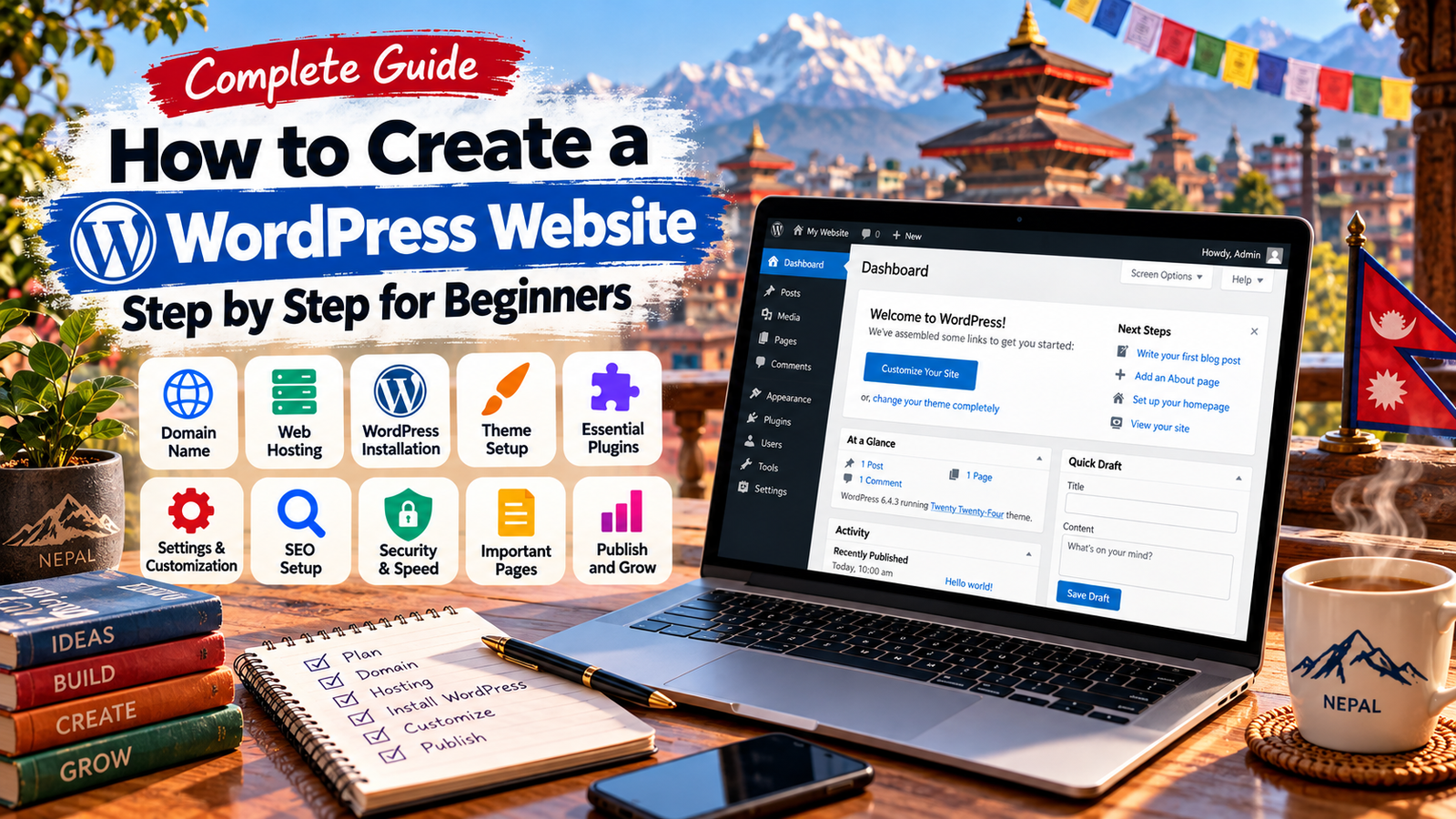
This complete beginner’s guide covers 15 essential steps to create a WordPress website, from buying a domain to publishing your first article and preparing your site for Google Search.
We will also explain which features are necessary and which are optional, so you can avoid spending money on tools you don’t need.
What Is WordPress?
WordPress is an open-source content management system (CMS) used to create and manage websites.
It allows users to publish articles, create pages, upload images, customise designs, and add functionality through plugins.
There are two main WordPress options:
WordPress.org: Self-hosted WordPress software that you install on compatible web hosting. It offers extensive control over your website.
WordPress.com: A hosted website service with different plans and features.
This guide focuses on self-hosted WordPress.org, which is commonly used for independent blogs, news websites, portfolios, and business websites.
Official resource: WordPress.org.
What Do You Need Before Creating a WordPress Website?
Before starting, prepare the following:
| Requirement | Essential or optional? | Purpose |
|---|---|---|
| Domain name | Essential for a conventional public website | Your website address |
| Web hosting | Essential for self-hosted WordPress | Stores website files and database |
| WordPress software | Essential | Manages the website |
| SSL/HTTPS | Essential for a secure public website | Encrypts connections |
| Theme | Essential | Controls website appearance |
| Plugins | Optional, depending on requirements | Add functionality |
| Logo | Optional initially | Establishes branding |
| Professional email | Recommended | Improves communication |
| Google Search Console | Recommended | Monitors Google Search visibility |
| Google Analytics | Optional | Measures website activity |
WordPress software itself is free, but hosting, domains, premium themes, and some services can involve costs.
Step 1: Choose Your Website’s Purpose
Before purchasing anything, decide why you want a website.
Common website types include:
- Personal blog.
- News and information website.
- Business website.
- Portfolio.
- Educational website.
- Online store.
- Service-booking website.
For example, a news website might require categories, article pages, author information, and search functionality.
A portfolio might need only a homepage, project gallery, About page, and contact form.
Choosing the purpose first helps you select suitable hosting, a theme, and the right features.
Essential: Identify your target audience and the main goal of your website.
Optional: Prepare a content calendar or a simple sketch of the homepage.
Before learning how to create a WordPress website, it is important to understand your website’s purpose, target audience, and the type of content you plan to publish.
Step 2: Choose and Register a Domain Name
A domain name is the address people enter into their browser to visit your website.
For example:
example.com
A good domain should be:
- Short and memorable.
- Easy to spell.
- Relevant to your website or brand.
- Distinctive enough to avoid confusion.
- Available for registration.
How to Register a Domain
- Visit a reputable domain registrar.
- Search for your preferred domain.
- Check its availability.
- Compare registration and renewal prices.
- Register the domain using accurate account details.
- Enable account security and renewal reminders.
Common extensions include .com, .org, and .com.np.
For Nepal-focused websites, .com.np may be worth exploring, subject to the registry’s eligibility and documentation requirements.
Important: Check renewal costs, not just introductory offers. Keep your domain registered under an account you control.
Step 3: Purchase Suitable Web Hosting
Web hosting provides the server resources needed to run your website.
When choosing a hosting provider, compare:
- WordPress compatibility.
- Storage and resource limits.
- Reliability and support.
- Backup availability.
- SSL certificate support.
- Renewal pricing.
- Server performance.
- Migration options.
Types of Hosting
Shared hosting: Multiple websites share server resources. It can be suitable for small beginner websites.
Managed WordPress hosting: The provider handles some WordPress-related technical tasks, depending on the plan.
VPS hosting: Offers more control and dedicated resources but usually requires greater technical knowledge.
For most beginners, a reputable shared or managed WordPress plan is a reasonable starting point.
Essential: Select hosting that supports current WordPress requirements.
Optional: Upgrade to more advanced hosting when your traffic and technical needs justify it.
Choosing reliable hosting is an important part of understanding how to create a WordPress website that performs well and remains accessible to visitors.
Step 4: Connect Your Domain to Hosting
If your domain and hosting come from different companies, you may need to connect them.
Usually, this involves changing the domain’s nameservers or DNS records.
General Steps
- Sign in to your hosting account.
- Locate the domain connection instructions.
- Copy the nameservers or DNS records provided.
- Open your domain registrar’s DNS settings.
- Apply the required changes.
- Save and wait for DNS updates to propagate.
DNS changes can take time to become visible across different networks.
If you bought the domain and hosting together, the connection may already be configured.
Essential: Make sure the domain points to the correct website.
Optional: Configure custom email DNS records if you use a separate email provider.
Step 5: Install WordPress
Many hosting providers offer automatic WordPress installation.
The exact menu names vary between companies.
How to Install WordPress Using a Hosting Dashboard
- Log in to your hosting control panel.
- Open the website management section.
- Look for a WordPress installer or website setup option.
- Choose your domain.
- Enter your website title.
- Create an administrator username.
- Use a strong, unique password.
- Enter an email address you control.
- Complete the installation.
After installation, the WordPress dashboard is commonly available at:
Sign in using your administrator credentials.
Alternative: Manual WordPress Installation
Advanced users can download WordPress from WordPress.org, create a database, upload the files, configure the installation, and run the setup process.
Beginners generally do not need to install WordPress manually if their hosting provider offers a reliable installer.
Security tip: Avoid using predictable administrator passwords. Enable two-factor authentication when available.
Once the installation is complete, you have finished one of the most important stages of learning how to create a WordPress website.
Step 6: Configure Essential WordPress Settings
After installing WordPress, configure the main settings before publishing content.
A. General Settings
Go to:
Dashboard → Settings → General
Review:
- Site Title.
- Tagline.
- Administration Email Address.
- Site Language.
- Timezone.
- Date Format.
- Time Format.
For a Nepal-based publication, choose the appropriate timezone, such as Kathmandu, if that matches the website’s publishing operations.
Save your changes.
B. Permalink Settings
Go to:
Dashboard → Settings → Permalinks
For many blogs, Post name is a readable permalink structure.
Example:
example.com/how-to-start-blogging/
Avoid changing permalink structures on an established website without planning redirects.
C. Reading Settings
Go to:
Dashboard → Settings → Reading
You can choose between:
- Your latest posts.
- A static homepage.
For a business website, a static homepage is often useful.
For a news website, the homepage may display selected articles and categories.
Also check the search engine visibility setting. When you are ready for public indexing, ensure you are not unintentionally discouraging search engines from indexing the site.
Step 7: Enable HTTPS and Check Your SSL Certificate
HTTPS encrypts information exchanged between visitors and your website.
Most reputable hosting providers offer SSL certificates, often at no additional cost.
How to Check HTTPS
- Open your website.
- Confirm that the address begins with
https://. - Check that the browser does not display a certificate warning.
- Review your hosting dashboard if SSL is not active.
- Confirm that HTTP addresses redirect to HTTPS.
If images or scripts still load through HTTP, you may encounter mixed-content warnings.
Essential: Use HTTPS before collecting visitor information or promoting the website.
Step 8: Install and Customise a WordPress Theme
A theme controls the visual appearance of your website.
To install a theme:
- Open Appearance → Themes.
- Select Add New Theme.
- Browse available themes.
- Preview a suitable option.
- Click Install.
- Click Activate.
Popular theme choices include Astra, GeneratePress, and WordPress’s default block themes.
News publishers may also consider specialist news themes, depending on their budget and requirements.
What to Look for in a Theme
- Responsive mobile design.
- Readable typography.
- Accessible navigation.
- Regular maintenance.
- Compatibility with your editor.
- Good performance.
- Reliable documentation.
Essential Design Elements
Configure your:
- Website logo or site title.
- Header.
- Main navigation.
- Footer.
- Homepage layout.
- Colours and fonts.
- Mobile navigation.
Some themes use Appearance → Editor, while others use Appearance → Customise or a dedicated theme panel.
Optional: Premium layouts, animations, advanced page builders, and specialised templates.
Avoid importing unnecessary demo content that you do not intend to replace.
When learning how to create a WordPress website, choosing a responsive theme helps ensure your pages work properly on mobile devices.
Step 9: Install Only the Plugins You Need
Plugins extend WordPress functionality.
To install one:
- Go to Plugins → Add New Plugin.
- Search for the plugin.
- Review its compatibility, maintenance, and reputation.
- Click Install Now.
- Click Activate.
- Configure its settings.
Recommended Plugin Categories
| Purpose | Example | Priority |
|---|---|---|
| SEO | Rank Math or Yoast SEO | Recommended |
| Backup | UpdraftPlus or host backups | Essential to arrange backups |
| Security | Wordfence or suitable host security | Recommended |
| Caching | LiteSpeed Cache where supported | Depends on hosting |
| Contact forms | WPForms Lite | Optional |
| Analytics integration | Site Kit by Google | Optional |
| E-commerce | WooCommerce | Only for online stores |
Do not install several plugins that perform the same task without a clear reason.
For example, using two SEO plugins simultaneously may create conflicting metadata.
Essential: Keep WordPress, plugins, and themes updated.
Optional: Add specialised plugins only when your website needs them.
Step 10: Create the Most Important Website Pages
A professional website needs more than a homepage.
Go to:
Dashboard → Pages → Add New
Create the pages relevant to your website.
Homepage
Explain what the website offers and help visitors find important content.
About Us
Describe the website’s purpose, audience, and who is responsible for it.
Contact Us
Provide a genuine method for visitors to contact the website owner or editorial team.
Privacy Policy
Explain relevant data collection and processing, including analytics, contact forms, cookies, and third-party services.
The content must reflect how your website actually operates.
Additional Pages
Depending on your website, consider:
- Terms and Conditions.
- Editorial Policy.
- Corrections Policy.
- Affiliate Disclosure.
- Cookie information.
- Services.
- Portfolio.
- Refund and Return Policy for applicable businesses.
Not every website needs every page. Legal obligations depend on the website’s activities and applicable laws.
After publishing, add important pages to your footer or navigation.
Step 11: Create Categories and Your First Blog Post
For a blog or news website, categories help organise articles.
Go to:
Posts → Categories
Create categories based on your content strategy.
For example, a digital information website might use:
- Technology.
- Education.
- Career.
- Freelancing.
- Business.
Avoid creating many empty categories.
How to Publish Your First Article
- Open Posts → Add New Post.
- Enter a clear title.
- Write an informative introduction.
- Organise the article using headings.
- Add original explanations and examples.
- Include relevant images.
- Select a suitable category.
- Add a featured image.
- Review the article on mobile and desktop.
- Preview and publish.
What Makes a Good Article?
Useful content should:
- Answer a real reader question.
- Provide accurate and understandable information.
- Avoid unsupported claims.
- Use trustworthy sources where appropriate.
- Include descriptive headings.
- Explain technical terms.
- Be reviewed before publication.
There is no universal minimum word count that guarantees Google rankings or AdSense approval.
A complete, helpful article is more important than an arbitrary word count.
Step 12: Set Up Basic WordPress SEO
Search engine optimisation helps search engines understand your content and website structure.
A plugin such as Rank Math can simplify some SEO tasks, but it does not guarantee rankings.
Basic SEO Setup
- Install one reputable SEO plugin.
- Run its setup wizard.
- Set your website type.
- Configure site titles and descriptions.
- Review indexing settings.
- Enable a suitable XML sitemap.
- Check your article titles and descriptions.
- Add relevant internal links.
- Use descriptive image alt text.
- Review how pages appear on mobile.
On-Page SEO Checklist
For each important article:
- Write a clear, relevant title.
- Use a descriptive URL.
- Answer the main question early.
- Organise sections logically.
- Include useful internal links.
- Link to authoritative external sources when relevant.
- Describe informative images accurately.
- Avoid unnecessary keyword repetition.
Keyword density scores are plugin recommendations, not direct Google ranking requirements.
Focus on natural writing and satisfying the reader’s search intent.
Understanding how to create a WordPress website also involves learning how search engines discover, understand, and index your content.
Step 13: Connect Google Search Console and Submit a Sitemap
Google Search Console is a free tool that helps website owners monitor their site’s presence in Google Search.
How to Set It Up
- Visit Google Search Console.
- Sign in with a Google account.
- Select Add property.
- Choose a Domain or URL-prefix property.
- Follow the ownership verification instructions.
- Confirm that the property is verified.
Domain properties generally use DNS verification.
How to Submit a Sitemap
Your sitemap location depends on your WordPress setup.
A WordPress site may use a sitemap such as:
https://example.com/wp-sitemap.xml
Some SEO plugins generate a sitemap index at:
https://example.com/sitemap_index.xml
Check which sitemap your website actually provides.
Then:
- Open your Search Console property.
- Select Sitemaps.
- Enter the appropriate sitemap address.
- Click Submit.
- Review the result.
Submitting a sitemap helps Google discover URLs but does not guarantee indexing.
You can also use URL Inspection to check an individual page.
Step 14: Improve Website Speed, Security, and Backups
A website should be fast enough to use comfortably, secure, and recoverable if something goes wrong.
Website Speed
Consider these improvements:
- Use appropriately sized images.
- Compress images without damaging readability.
- Avoid unnecessary plugins.
- Choose efficient hosting.
- Enable suitable caching.
- Reduce heavy animations.
- Test the mobile experience.
You can check performance with Google PageSpeed Insights.
Treat performance recommendations as diagnostic information rather than a requirement to achieve a perfect score.
Website Security
Important precautions include:
- Strong, unique passwords.
- Two-factor authentication where supported.
- Regular software updates.
- Trusted themes and plugins.
- Limited administrator access.
- Secure hosting credentials.
- Removal of unused plugins and themes.
Backups
A useful backup system should cover both:
- WordPress files.
- The website database.
Schedule backups based on how often your website changes.
Keep at least one backup copy separate from the live hosting environment and periodically test the restoration process.
Essential: Have a working recovery plan before making major website changes.
Step 15: Prepare Your Website for Google AdSense
Once your website is functional and contains useful original content, you may consider advertising monetisation.
Google AdSense allows eligible publishers to display advertisements on their websites.
Before Applying for AdSense
Check that your website:
- Contains original, useful content.
- Has clear navigation.
- Works on mobile devices.
- Does not contain unfinished demo pages.
- Complies with AdSense programme policies.
- Provides accurate information about its purpose.
- Includes appropriate privacy disclosures.
- Is accessible to visitors and Google’s review systems.
Google requires AdSense applicants to meet its eligibility conditions, including the applicable age requirement.
How to Apply
- Visit Google AdSense.
- Sign in with your Google account.
- Provide the requested website information.
- Complete the required account and payment information.
- Connect your website using a supported verification method.
- Request a site review when prompted.
- Monitor the application status.
On WordPress, you may be able to connect AdSense using a supported plugin or by adding the required code to your site’s head section.
The available method depends on your website configuration.
Is There a Minimum Number of Articles?
Google does not publish a universal requirement that every AdSense website must have a particular number of posts.
Quality, originality, policy compliance, and overall site readiness matter more than meeting an invented article-count target.
AdSense approval is not automatic, and applications can be declined.
Essential vs Optional WordPress Features
Here is a practical summary for beginners.
| Website feature | Priority |
|---|---|
| Domain and compatible hosting | Essential |
| WordPress installation | Essential |
| Secure administrator login | Essential |
| HTTPS | Essential |
| Suitable theme and navigation | Essential |
| Useful original content | Essential |
| Backups and updates | Essential |
| Privacy disclosures appropriate to the site | Essential where legally required |
| SEO plugin | Recommended |
| Google Search Console | Recommended |
| Contact page | Recommended |
| Custom logo | Optional initially |
| Premium theme | Optional |
| Page builder | Optional |
| Google Analytics | Optional |
| Newsletter system | Optional |
| AdSense | Optional |
| E-commerce features | Optional |
A beginner website can be successful without purchasing every premium tool.
Once your WordPress website is ready, the next step is creating helpful content that attracts readers. You can explore our guide to earning money online in Nepal for ideas about developing digital skills and online opportunities.
Common WordPress Mistakes Beginners Should Avoid
1. Installing Too Many Plugins
Unnecessary plugins can increase maintenance requirements and create compatibility issues.
2. Choosing a Theme Based Only on Appearance
A visually impressive theme may still be difficult to maintain or slow on mobile devices.
3. Ignoring Backups
Without reliable backups, restoring a damaged website can be difficult.
4. Publishing Unreviewed AI-Generated Content
AI tools can support research, outlining, and editing, but publishers remain responsible for factual accuracy, originality, and usefulness.
5. Forgetting Mobile Visitors
Always check menus, text, images, and buttons on smaller screens.
6. Changing URLs Without Redirects
Changing published URLs can break existing links. Use appropriate redirects when moving content permanently.
7. Applying for AdSense Too Early
A website with placeholder pages, incomplete navigation, or low-value content may not be ready for advertising review.
This guide explains how to create a WordPress website from the beginning, including domain registration, hosting, design, essential plugins, SEO, and security.
Frequently Asked Questions
Can I create a WordPress website without coding?
Yes. Many WordPress websites can be built using themes, the block editor, and plugins without writing code.
Is WordPress free?
The self-hosted WordPress software is free and open source. Domain registration, hosting, and optional premium products may cost money.
Which hosting is best for beginners?
A reputable provider offering compatible WordPress hosting, reliable support, backups, and clear renewal pricing is a sensible choice. The best provider depends on your needs and budget.
How long does it take to build a WordPress website?
A basic installation can be completed quickly, but preparing a polished website with original content, appropriate pages, security, and testing may take considerably longer.
Can I create a WordPress website from Nepal?
Yes. Users in Nepal can create WordPress websites, subject to the availability and terms of their chosen domain, hosting, and payment providers.
Do I need a premium WordPress theme?
No. A suitable free theme can be sufficient for many blogs, portfolios, and small business websites.
Can I earn money from a WordPress website?
Potential revenue methods include advertising, affiliate marketing, selling services, and e-commerce. Income is not guaranteed, and each method has its own requirements.
Does WordPress automatically rank on Google?
No. WordPress provides tools for publishing and organising content, but search visibility depends on many factors, including content relevance, accessibility, and competition.
Conclusion
Learning how to create a WordPress website involves much more than installing software.
A reliable website starts with a clear purpose, suitable hosting, a memorable domain, secure WordPress settings, useful content, and a manageable design.
Once the essential setup is complete, you can improve SEO, connect Google Search Console, monitor performance, and explore optional features such as analytics and advertising.
For beginners in Nepal and elsewhere, the most practical approach is to build a simple, functional website first and expand it as your needs grow.
Start with the essentials, publish genuinely helpful content, and maintain your website consistently.

